Chrome multiple profiles for X accounts: what they isolate and what they do not
A Chrome profile, or a Firefox container, keeps cookies, logins and site storage separate, so you can stay signed in to several X accounts at once in one browser. It does not give each account its own IP address or its own browser fingerprint: every profile shares your network and your machine. For accounts that must look unrelated, you need a separate proxy per account and possibly a separate fingerprint.
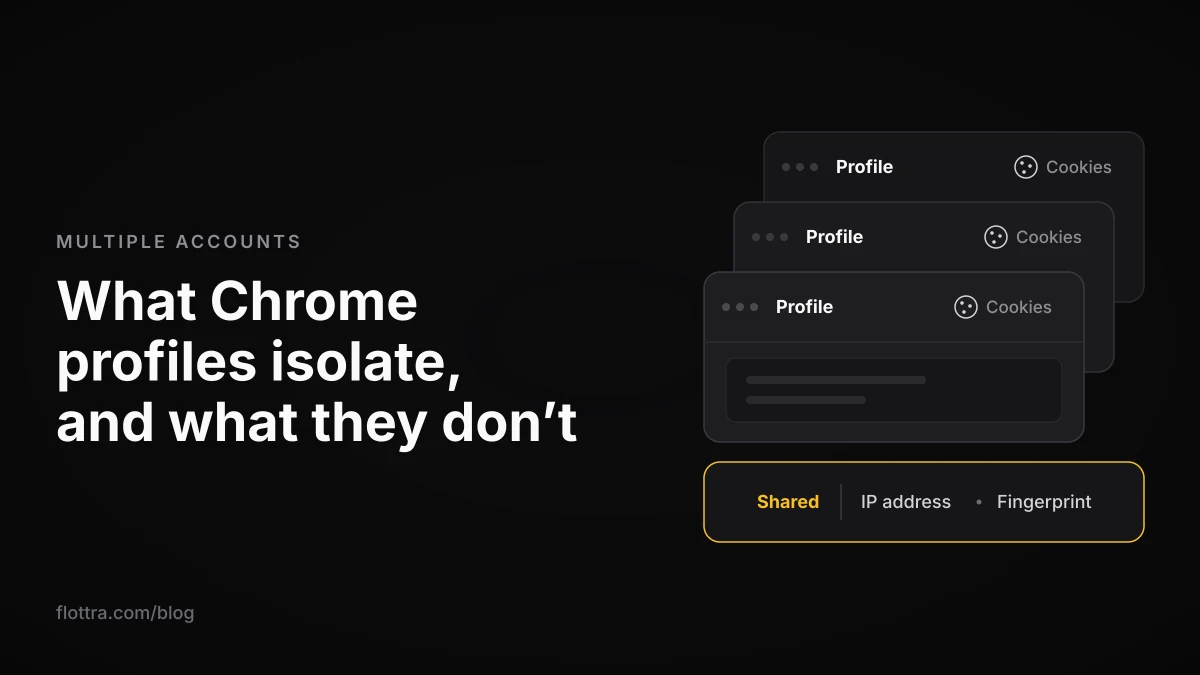
Chrome's multiple profiles let you stay signed in to several X (formerly Twitter) accounts side by side, one account per profile, each in its own window. A profile keeps cookies, logins, history, saved passwords, extensions and site data apart. It does not give each profile its own IP address, its own hardware or its own browser fingerprint, and it changes nothing about how each account behaves. Firefox Multi-Account Containers do the same job inside one window, with the same gap. Whether that is enough depends on one question: are these accounts allowed to look as if one person runs them?
What Chrome profiles keep separate, and what they share
A Chrome profile is a separate set of browser data inside one Chrome installation. It separates logins and browsing data, so each profile can hold its own X session, but every profile still runs on the same computer and the same internet connection. Google puts it this way: "With profiles, you can keep all your Chrome info separate, like bookmarks, history, passwords, and other settings." (Google Chrome Help, checked 18 October 2026). Google's page says nothing about separating IP addresses or devices, and that is the gap that matters for X accounts.
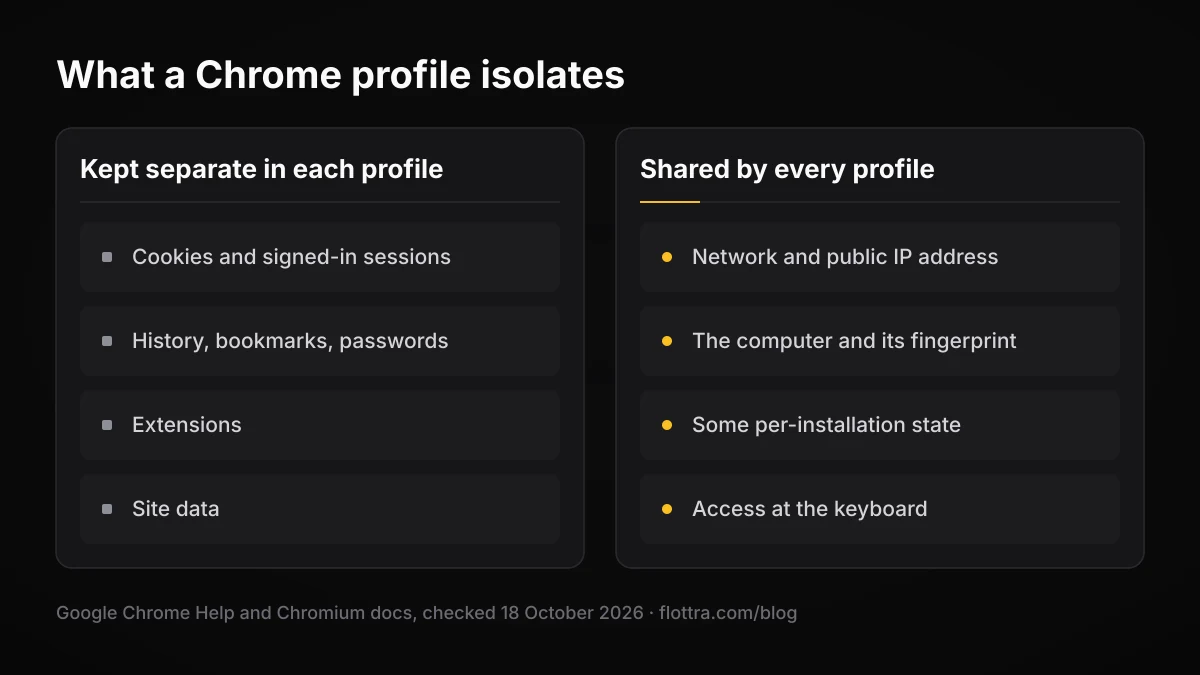
Under the hood, each profile is a subfolder of one user data directory. The Chromium documentation says: "The user data directory contains profile data such as history, bookmarks, and cookies, as well as other per-installation local state." (Chromium docs, checked 18 October 2026). Cookies live per profile, which is why two profiles can show two different X accounts at the same moment. Some state belongs to the installation, not to the profile.
Kept separate in each profile
- Cookies and signed-in sessions, so one X login per profile without logging out of the others.
- History, bookmarks, saved passwords and settings.
- Extensions installed in that profile, including a proxy extension if you add one (covered below).
- Data that websites store in the browser for that profile.
Shared by every profile on the machine
- Your network connection and therefore your public IP address. Out of the box, every profile uses the same system proxy settings.
- The computer itself: operating system, screen, fonts, graphics hardware and the other traits that browser fingerprinting reads.
- Some per-installation local state, as the Chromium docs note.
- Access. Anyone at the keyboard can open any profile.
Profiles are not a lock
Google is explicit: "If someone has your device, they can switch to any other Chrome profile on it." (Google Chrome Help, Android page, checked 18 October 2026). Profiles organise accounts. They do not protect them from anyone else who uses the computer.
How to create multiple profiles in Chrome
On desktop Chrome you add a profile from the profile icon at the top right, then Add Chrome profile, then a name, photo and colour scheme. Signing in with a Google Account is optional. These are the current steps from Google's help page, checked 18 October 2026; guides that still say "Manage People" or "Add person" describe an older interface.
- Open Chrome and select your profile icon at the top right.
- Select Add Chrome profile.
- Decide whether to sign in with a Google Account. It is optional. If you sign in, the profile is named after that account. A profile used only for X does not need one.
- Choose a name, a photo and a colour scheme. Name it after the X handle and give each one a different colour, so you can see at a glance which account a window belongs to.
- Open x.com in the new window and sign in to the one X account that belongs to this profile.
- Repeat once per X account.
To list every profile when Chrome opens, go to Manage Chrome profiles and tick Show on startup at the bottom. To find a profile's folder on disk, type chrome://version in its address bar and read the Profile Path line. On Windows the folders sit under %LOCALAPPDATA%\Google\Chrome\User Data, and the first profile is usually called Default. Knowing the folder matters if you back profiles up or launch them with their own settings.
Does Chrome sync all profiles to one Google account?
No. Several guides that rank for this query say Chrome syncs every profile to the same Google account by default, which is wrong. Each profile signs in to its own Google Account or to none, and a profile with no account signed in has nothing to sync it to. Sync belongs to the profile, not to the installation.
Chrome on Android allows one profile
Google's Android page says: "You can only have one Chrome profile on Android devices." (checked 18 October 2026). The profile method is desktop only. On a phone, several X accounts means the X app's own account switcher or separate devices.
Chrome multiple profiles with the same account: two different questions
"Chrome multiple profiles same account" means one of two things. Either you want the same Google Account in more than one Chrome profile, or you want several logins to one website, such as X, open at once. The second is what profiles do well; the first is rarely needed for X work.
The same Google Account in two profiles
Whether the current Chrome lets you sign the same Google Account into a second profile, and the exact message it shows if it refuses, was not confirmed for this post, so test it on your own install before you plan around it. For X it rarely matters: an X login lives in the profile's cookies and needs no Google Account at all.
Several X accounts in one browser
Use one profile per X account. The alternative is X's built-in switcher inside a single profile: profile icon, then the more or plus icon, then "Add an existing account". It holds a handful of accounts, and the help page does not publish the ceiling (X Help Center, checked 19 September 2026). With the switcher, every account sits in the same profile on the same connection. With profiles, at least the cookies are apart.
Splitting one account across several profiles or devices does not buy it more actions. X's limits page says: "These limits include actions from all devices, including web, mobile, phone, API, etc." (About X limits, checked 19 September 2026). The numbers themselves are in the X rate limits guide.
Firefox Multi-Account Containers: how they compare
Firefox Multi-Account Containers is a Mozilla extension that splits tabs into colour-coded containers, each with its own cookies, so you can be signed in to several X accounts in one window. Mozilla lists the use directly: "Sign in to multiple accounts on a single website (for example, personal and work email accounts)." (Mozilla Support, checked 18 October 2026). The add-on page adds: "Cookies downloaded by one Container are not available to other Containers." (Firefox Add-ons, version 8.3.8, last updated 24 June 2026, checked 18 October 2026).
The difference from Chrome profiles is scope. Containers all live inside one Firefox profile, so they share one history and one sync account: "Firefox can only sync with one Firefox account." (Mozilla blog, checked 18 October 2026). A developer write-up on DEV Community, which is not official, lists what a container does isolate (cookie jar, localStorage, sessionStorage, IndexedDB, cache) and what it does not (IP address, browser fingerprint, DNS queries, history).
Firefox's default Total Cookie Protection does not replace containers for this job. Mozilla says: "Total Cookie Protection does not isolate cookies from different open tabs under the same domain." (Mozilla blog, checked 18 October 2026). Two tabs on x.com still share one login unless they sit in different containers or profiles.
Setting up containers for X
- Install Firefox Multi-Account Containers from the Firefox Add-ons site.
- Create one container per X account, named after the handle, each with its own colour.
- Open a new tab in that container and sign in to the matching X account.
- From then on, open each account only in its own container. A normal tab outside it will not see that login.
Native containers in Firefox 153
Mozilla has announced a preview of containers built into Firefox 153, with no extension needed, and names "managing multiple social media accounts" among the uses (Mozilla blog, checked 18 October 2026). The release date was not confirmed at the time of checking, so treat it as a preview.
Do Firefox containers change your IP address?
Not on their own. Every container uses the same connection unless you add something. Mozilla's support page says the extension can integrate Mozilla VPN per container, which lets different containers exit through different VPN locations; that integration does not work in Snap or Flatpak installs. The add-on page also lists an optional "Control browser proxy settings" permission. Either way, a different IP leaves the fingerprint unchanged.
Chrome profiles, containers and antidetect browsers compared
Each way of running several accounts in a browser separates a different amount. Chrome profiles and Firefox containers separate cookies and storage only. Adding a proxy or VPN separates the IP. Only an antidetect browser claims to separate the fingerprint, and that claim comes from the vendors.
| Method | Cookies and site storage | IP address | Browser fingerprint | Notes |
|---|---|---|---|---|
| Chrome profile | Separate per profile | Shared (same system proxy) | Shared (same machine and browser) | Desktop only; Android allows one profile |
| Firefox container | Separate per container | Shared | Shared | Tabs in one Firefox profile; one history, one Firefox account for sync |
| Firefox container with Mozilla VPN | Separate per container | Different per container, through the VPN | Shared | VPN integration does not work in Snap or Flatpak installs |
| Chrome launched with its own --user-data-dir and --proxy-server | Separate per folder | Its own, if the proxy holds and nothing leaks | Shared | One shortcut per account; test for WebRTC and DNS leaks |
| Antidetect browser | Separate per browser profile | Its own, if you assign a proxy | Altered per profile, by vendor design | Vendor claims; prices and features not checked for this post |
Whether you need the last row at all is a separate question, answered in Do you need an antidetect browser for X accounts?
How to give each Chrome profile its own proxy
Chrome has no per-profile proxy setting out of the box, so every profile exits through the same IP. Chromium's proxy documentation lists where Chrome takes proxy settings from: managed policy, the --proxy-server command-line flag, per-profile extensions using the chrome.proxy API, or the operating system's per-network settings (Chromium proxy docs, checked 18 October 2026). Extensions and managed policy can be set per profile, the command-line flag applies to the Chrome process it starts, and the system setting applies to every profile at once.
Two patterns that work
- A proxy extension in each profile. Install a proxy extension in every profile and give each its own proxy. This is one of the per-profile routes the Chromium docs name.
- A separate launch per account. A desktop shortcut that starts Chrome with its own
--user-data-dirfolder and its own--proxy-server. Each shortcut gets its own cookies and its own exit.
An illustrative shortcut target, with placeholders rather than a real server: chrome.exe --user-data-dir="C:\ChromeX\account01" --proxy-server="http://PROXY_HOST:PORT". A blog post from Sendwin, a vendor that sells a multi-profile browser, says Chrome's own proxy button only opens the operating system dialog that applies to every app, that --proxy-server does nothing if a Chrome process is already running, and that the flag accepts no username and password. Those points are not confirmed in Chromium's documentation, so if your proxy needs a login, test before you rely on the flag.
Check for leaks before you sign in
- Open an IP-check page in each profile and confirm it shows that profile's proxy address, not your home connection.
- Run a WebRTC leak test in each profile.
- Run a DNS leak test.
- Sign in to X only after all three pass.
The reason for the checks: Chromium network engineer Eric Roman wrote on the net-dev list that "Plugins and WebRTC can do their own thing and not consider any Chrome per-profile proxies." and raised DNS lookups in the same thread (chromium net-dev, checked 18 October 2026). The thread is about 11 years old, so it is a reason to test, not proof of how current Chrome behaves. Proxy types and the other leaks are covered in Choosing proxies for X accounts.
Can X tell that two accounts are on the same computer?
Nobody outside X can say for certain, because X does not publish how it links accounts. A shared IP address, a matching fingerprint or a shared device are possible signals, not confirmed ones. What is certain is that Chrome profiles on one machine share the IP unless you change it, and share everything fingerprinting reads from the hardware. Even GoLogin, which sells an antidetect browser, concedes in its own Chrome profiles guide that websites can tell several profiles run on one device through fingerprinting, even behind a proxy. That is a vendor with a commercial interest, but it matches how profiles are built.
X's rules target behaviour, not the count of accounts. The authenticity policy says: "Multiple Accounts and Coordination: We prohibit coordinated inauthentic activity that artificially influences conversations or disrupts X." It also says: "Ban Evasion: You may not circumvent X enforcement actions." (Authenticity policy, checked 19 September 2026). A fresh profile is not a way back for a suspended account.
If you plan to script the profiles
X's automation rules list as a Don't: "Use non-API-based forms of automation, such as scripting the X website. The use of these techniques may result in the permanent suspension of your account." (Automation rules, checked 19 September 2026).
The lock page adds: "If your account appears to have exhibited automated behavior that violates the X Rules, we may lock it and request that you pass a captcha challenge to confirm you are not a robot." (Locked and limited accounts, checked 19 September 2026). The page gives no duration for a lock. What tends to get accounts caught is in Why X accounts get suspended.
When Chrome profiles are enough, and when they are not
Chrome profiles solve a login problem, not a separation problem. They are enough when you do not mind X seeing that the accounts belong to one operator. They are not enough when the accounts must not be seen as one operator, because profiles leave the IP and the fingerprint shared.
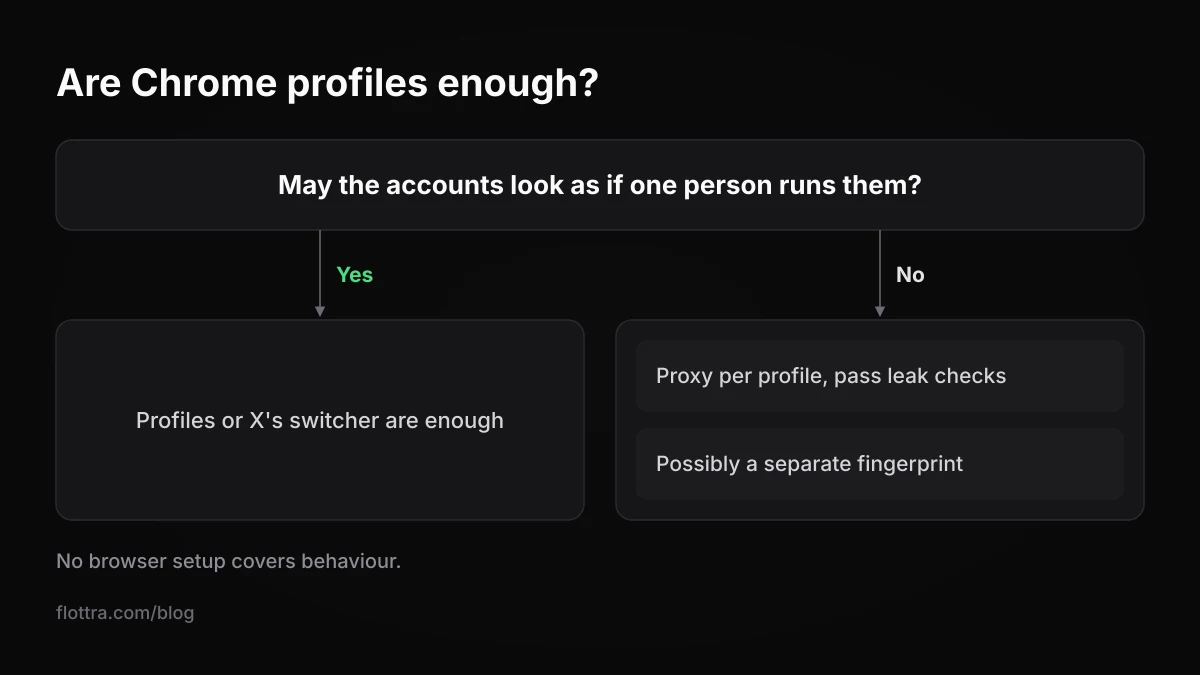
Profiles or the switcher are enough
- A few accounts you run openly under one identity: you, your brand, its support account.
- Accounts you simply want open side by side without logging in and out.
- Work and personal accounts kept apart, the use Google designed profiles for.
Profiles are not enough
- Accounts that should not be seen as run from one place need, at minimum, a different IP per account, which means a proxy per profile and passing leak checks.
- They may also need a separate fingerprint, which is what antidetect browsers are sold to provide.
- No browser setup covers behaviour. Accounts that post, like or follow in lockstep look coordinated whatever they run in.
flottra's desktop app takes the proxy-per-profile route on your own Windows computer: it opens one real browser per X account, each with its own saved browser profile and its own proxy, and no browser runs on flottra's servers. flottra recommends one proxy per account, refuses to put more than five accounts on one static proxy, and does not promise that any account will avoid suspension.
Whatever you choose, open every account regularly. X says: "To keep your account active, be sure to log in at least every 30 days." (Inactive account policy, checked 19 September 2026). A profile you forget about is an account at risk of removal. The three common setups, from the app switcher to one proxy per account, are laid out in How many X accounts can you have.
Questions
- How do I create multiple profiles in Chrome?
- On desktop, select your profile icon at the top right, choose Add Chrome profile, then pick a name, photo and colour. Signing in with a Google Account is optional, and a profile used only for X does not need one. Each new profile opens in its own window with empty cookies, so you can sign in to a different X account there. Tick Show on startup under Manage Chrome profiles if you want Chrome to list every profile each time it opens.
- Can I be logged into several X accounts at once in one browser?
- Yes, in two ways. X's own switcher holds a handful of accounts inside one browser profile; the help page does not publish the maximum. Or you give each account its own Chrome profile or Firefox container, so each login has its own cookies and you can keep several windows or tabs open together. Neither method gives the accounts different IP addresses, and X counts each account's limits across every device it uses.
- Do Chrome profiles have different IP addresses?
- No. By default every Chrome profile uses the same system proxy settings, so all of them reach X from your one internet connection. A profile only gets its own exit through a proxy extension installed in that profile, a managed policy, or a separate launch with its own --user-data-dir and --proxy-server flags. After setting one up, check each profile with an IP test, a WebRTC leak test and a DNS leak test before you sign in.
- Can I have multiple Chrome profiles on Android?
- No. Google's help page states that you can only have one Chrome profile on Android devices. Running several profiles is a desktop feature on Windows, macOS and Linux. On a phone, the practical options for several X accounts are the X app's built-in account switcher or more than one device. Remember that switching accounts in one app keeps them all on the same phone and the same connection.
- Do Firefox containers change your IP address?
- Not by themselves. A container separates cookies and site storage, but every container uses the same connection and the same browser fingerprint. Mozilla's extension can integrate Mozilla VPN per container, which routes different containers through different VPN locations, though that does not work in Snap or Flatpak installs. The add-on also lists an optional permission to control proxy settings. Without one of these, two containers on x.com share one IP.
- Is a multi-account (antidetect) browser better than Chrome profiles?
- It separates more, by the vendors' own description: each browser profile gets its own cookies and an altered fingerprint, and you can attach a proxy to each. Chrome profiles separate cookies only. Whether that is better depends on your accounts. For a few accounts you run openly under one identity, profiles are enough. For accounts that must not look connected, you need a proxy per account at least. X does not publish what it checks.
- How many accounts can I add to the X app account switcher?
- X does not publish a number. Its help page explains how to add accounts (profile icon, then the more or plus icon, then Add an existing account) and how to switch between them, but gives no ceiling. A figure of five circulates widely, yet it is not stated on the official page. X also says it cannot merge accounts or move posts, followers or following from one account to another.